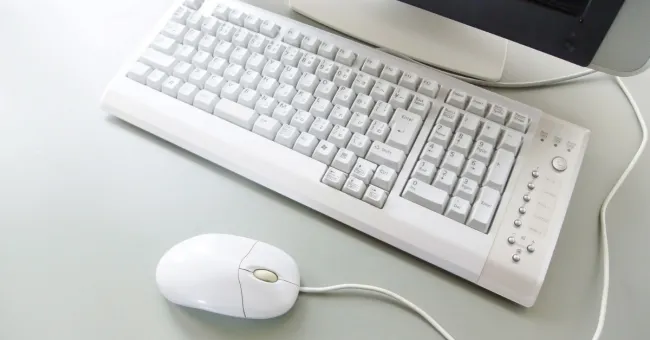
When it comes to automating the procedure of interacting with controls within a window or navigating through a webpage, application or other types of interfaces, turn to robotic process automation (RPA). RPA bots can impersonate any mouse or keyboard activity as well as virtually any form of desktop interactions that a human would perform.
Here are just some of the more commonly used interactivity actions that an RPA solution can automate in a workflow. Through GUI automation, learn how these bots are used to navigate and interact with interfaces—and learn some troubleshooting tips for some frequent interactivity and navigation related problems.
Want to try automating desktop interactions? Download a trial of Automate to get started.
Automate Desktop Interactions and Navigation
RPA bots can be used to interact with controls or objects within a window. Automate’s 'Send Keystrokes' action is one of the most commonly used of these actions. It is used primarily to simulate keystrokes being typed into an application or simulate the process of navigating through an interface. It can interact with standard or non-standard Windows based interfaces because it does not need to detect any controls, objects or pixel coordinates. It will accurately move about a window just as long as that window is in the foreground.
The 'Move Mouse to Object' action moves the cursor to an object or control on a window such as a button, page tab, text box, column header or link. To select an object from an existing window, go to the 'General' tab of this action and drag the "A" icon to the desired object on the screen. If the object becomes highlighted, then Automate was able to recognize the object. Simply use a 'Click Mouse' action to simulate clicking the object.
Another possibility is to use the 'Press' action, which simulates moving the cursor to an object and clicking that object all within one step. This action only simulates a single click; therefore, it will work as long as the object it is pressing does not require a double click. You can select an object in the same manner as the 'Move Mouse to Object' action.
Both the 'Move Mouse to Object' and 'Press' actions communicate with the target control natively, therefore, the window where the control resides is not required to be in the foreground for the event to occur. Additionally, these actions will continue to detect the target control even if it has been moved to a different location within the window. A common usage for these actions is to click the icons in the system tray or desktop.
Automate Get Data and Set Data
Automate RPA bots can simulate grabbing data from a window in a number of ways. The 'Get Text' action can retrieve the text from a control on a window and store it in a variable. The 'Set Text' action can set the text of a control on a window. Automate also includes the standard clipboard actions such as 'Copy,' 'Cut,' and 'Paste' commands. Other 'Clipboard' actions include 'Get Clipboard' action, which retrieves the current contents of the clipboard as text and places it in an Automate variable, 'Set Clipboard' action which sets the clipboard to the text specified in the Text parameter.
The 'Send Keystrokes' action can be appropriately used to Get or Set text in a window as well. To set data, you can simply use this action to tab to the correct field and enter text. To get data (for example, text within an edit box control), you will need to use 'Send Keystrokes' to highlight and copy it. Achieving this will require you to send tabs and arrows to navigate to what you need to copy. To get all data from a particular document, simply use the appropriate Hot Keys (shortcut keys specified by the underlined letters) to do so. For example, if you want to copy all of the text from a Word document, enter "{CTRL}a" to select all, and "{CTRL}c" to copy the selected text.
Automate Selecting Items
There are several actions in Automate that can be used to select certain items in a window, depending on where the item(s) are located. The 'Select Item' action can select an item from a list, a tree or a combo box on a window. The 'Get Selected List Item' and 'Get Selected Tree Item' actions appropriately retrieve the currently selected item(s) of a list box or tree view.
Common Desktop Interactivity Automation Problems and Solutions
As with all automated tasks, when creating tasks that deal with interactive actions, it is best to initially figure out step by step exactly how to accomplish the job manually. Certain interactivity related tasks may fail if a user is currently utilizing the keyboard or mouse or somehow interacting with the desktop while the task is running. For example, if a task includes a 'Send Keystrokes' step that is executed at the same time a user is typing with the keyboard, incorrect keystrokes can be mistakenly entered, causing the task to fail.
Therefore, it is recommended that user activity does not take place while an interactive task runs. It is also recommended that two or more tasks which include interactivity actions are not run simultaneously. This is because the steps of one task may mistakenly interact with the execution of another task. For example, Task A can be sending keystrokes to a window that Task B is set to focus, therefore failing both tasks. To resolve this issue, set the priority level for each task that includes interactive actions to either 'Run Alone' or 'Limit number of simultaneous tasks" to "1." All other tasks can be set to wait in a queue of waiting tasks until the current task has been completed.
Two of the most common errors that occur when a task interacts with an interface are "Window Not Found" and "Control Not Found." These errors generally occur when RPA bots fail to detect a particular window or control in a window, usually because the window may not have opened or fully loaded as of yet. A very important thing to remember is that Automate generally executes each step of a task within milliseconds. Therefore, a rule of thumb when creating interactivity related tasks is to make certain that appropriate 'Wait' actions are always utilized.
Simplify Interactivity Automation with Step Recording
One of the easiest ways to build automated desktop-based tasks is by using a step recorder. The Automate Recorder enables UI-driven automation—both for desktop and browser-based tasks—without writing a single line of code. Create robust automation with a simple, step-by-step approach through screen recordings. Here’s how: